claude.ai/directory/shopify Open the Shopify connector ↗ -
Find Shopify in Claude
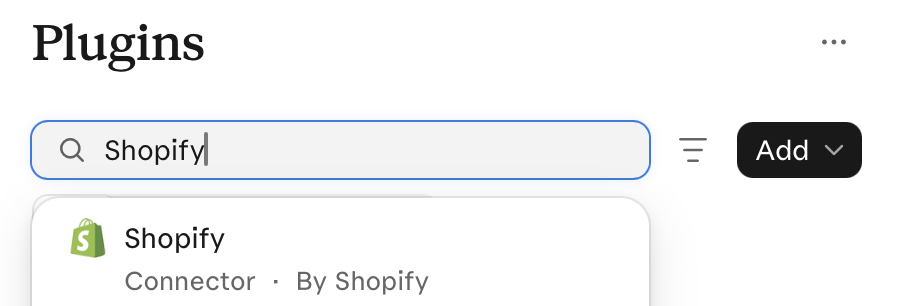
In Claude open Plugins and type Shopify in the search. Pick Shopify, the one marked Connector, By Shopify.
-
Add the connector
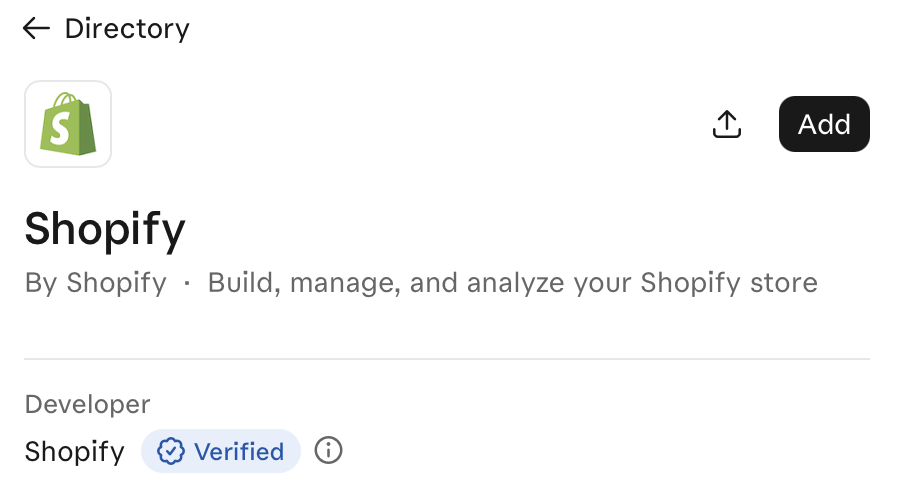
On the Shopify page check that it says By Shopify and carries the Verified mark, then press Add.
-
Ask about your store
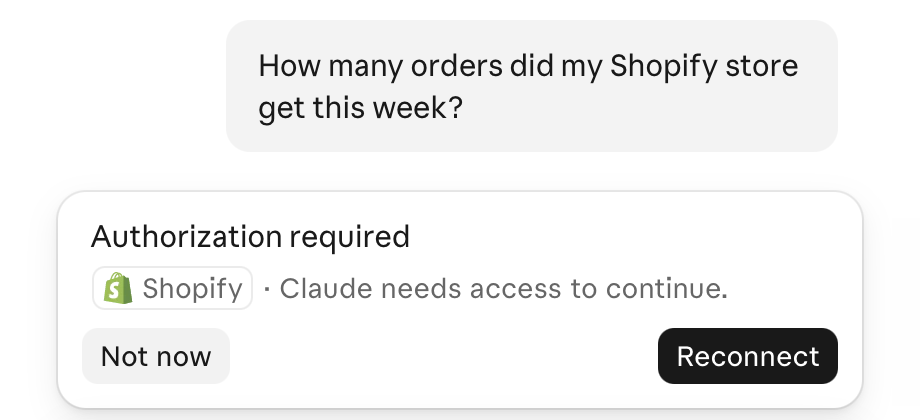
Start a chat and ask anything about your store. Claude shows a card Authorization required; press Reconnect. On a first connection the wording may differ slightly.
-
Pick your store
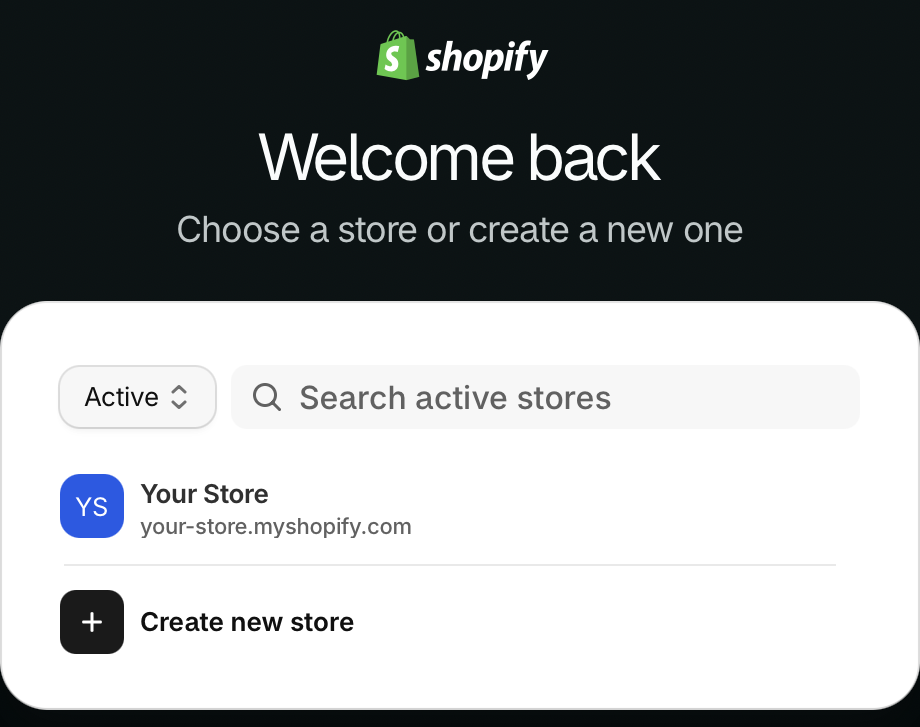
Shopify opens. Choose the store you want to connect. It is one store at a time.
-
Review the access and install
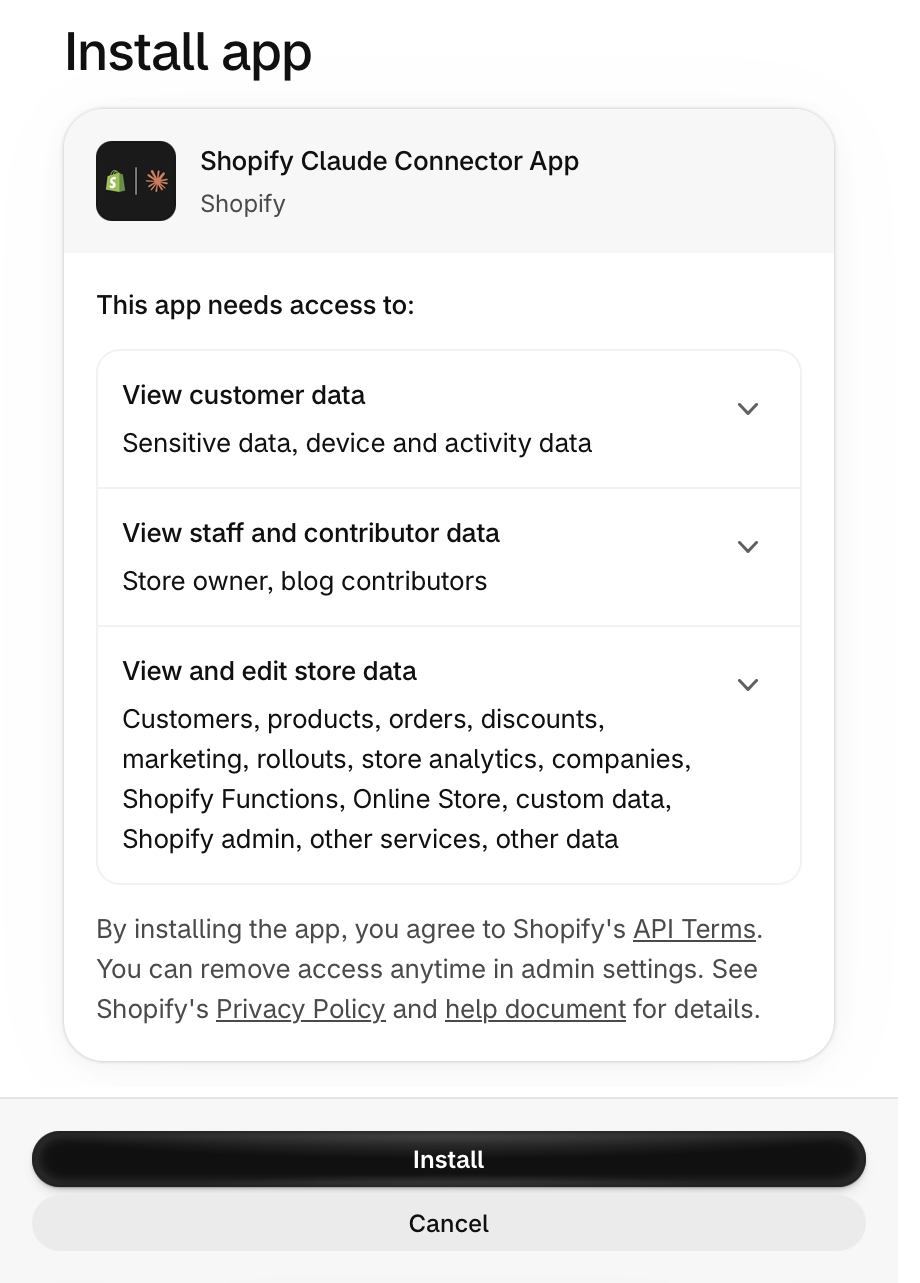
The page Install app, Shopify Claude Connector App, lists what the connector can view and edit. Read it, then press Install. Use a desktop browser for the setup.
-
Ask for numbers
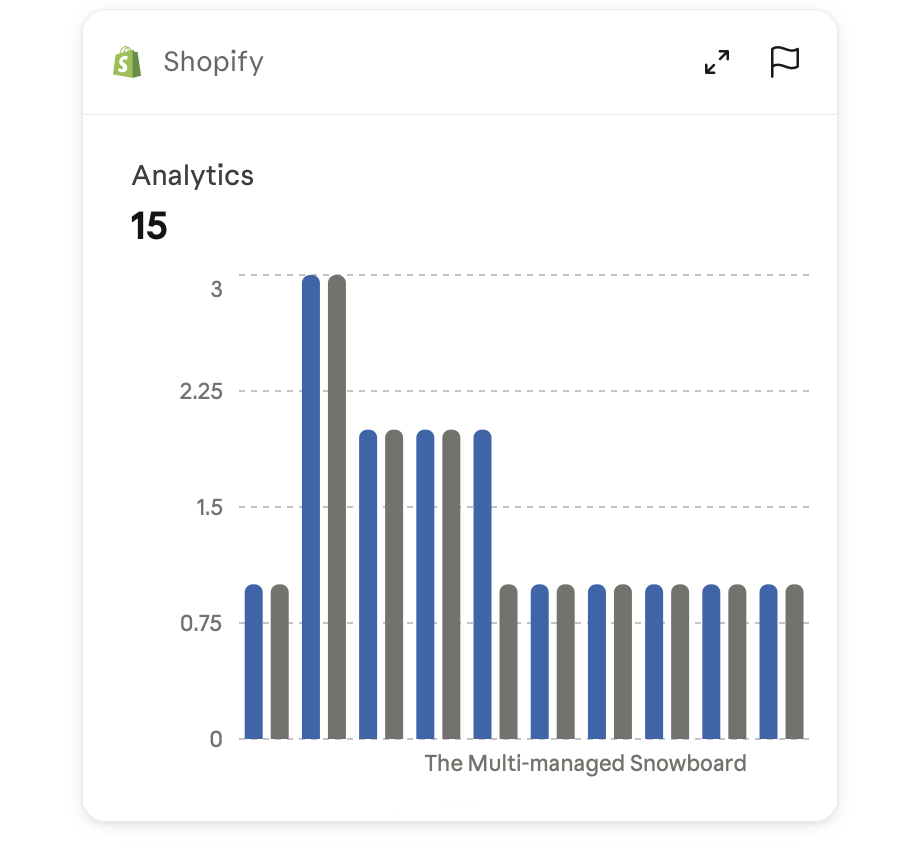
For example: "What sold best this week, and what is about to run out?" Claude answers with a chart and a list.
-
Give it a task
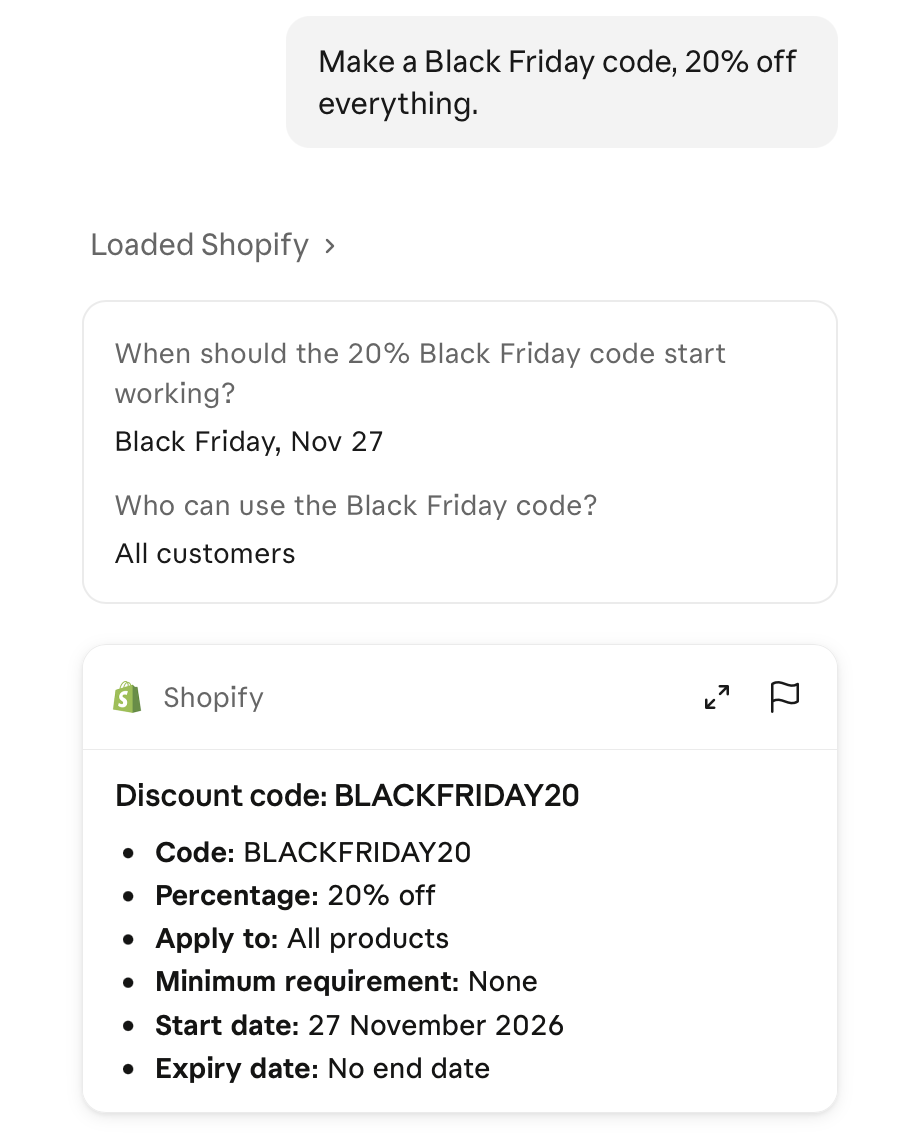
For example: "Make a Black Friday code, 20% off everything." Claude asks when it starts and who can use it, then creates the code.
What it can and cannot do
It works with products, collections, inventory, orders, customers, discounts and analytics. It cannot issue refunds, cancel or capture orders, edit or publish the live theme, or change your plan, payments, taxes or domains. Changes go one item at a time, so a big batch can stop partway.
Sources
- Shopify Help Center, "Shopify connector for Claude"
- Shopify Help Center, "Authorizing AI tool access to your store"
- Shopify Help Center, "Considerations for using third-party AI tools with your Shopify store"
- Claude, Shopify connector page
Checked November 2026. Screens show a demo store; your page may look slightly different.